

Overview
The Dashboard is the default view in a Client record. It brings important client-specific work into one configurable workspace, so you can see readiness, claims, deadlines, signatures, tasks, messages, and other relevant context without leaving the Client record.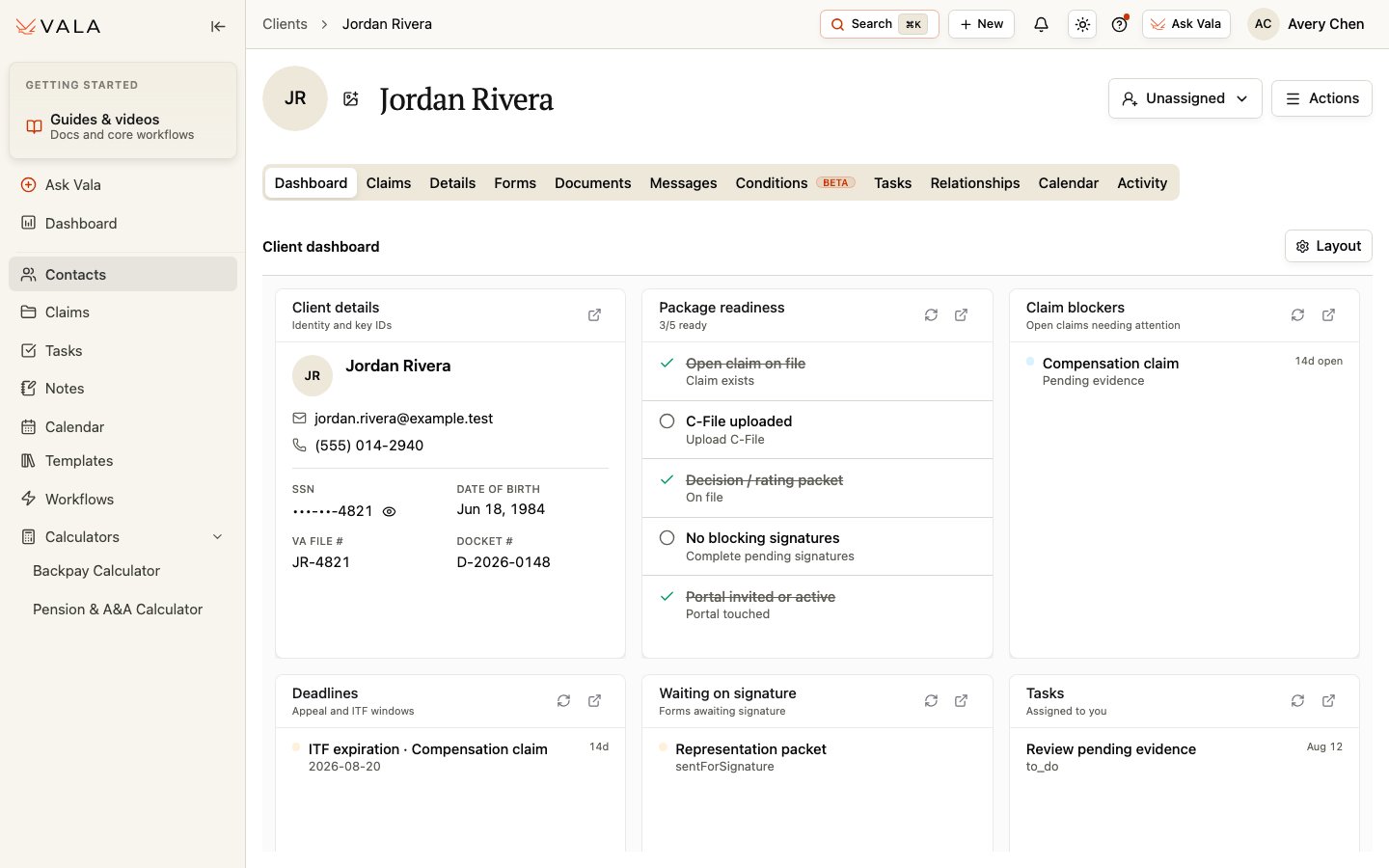
When to use it
Use the Dashboard when you need to triage a Client’s next steps, review work that needs attention, or tailor a workspace to your role.Choose a starter layout
Open Layout and choose the starting point that best fits the work you do:- Case manager emphasizes package readiness, assigned tasks, blockers, deadlines, signatures, and messages that need a reply.
- Advocate / owner emphasizes client details, package readiness, blockers, decision intake, deadlines, evidence gaps, and available financial review work.
- Intake emphasizes client details, package readiness, signatures, forms, and messages.
- Balanced starts with client details, package readiness, claim blockers, deadlines, signatures, tasks assigned to you, and messages that need a reply.
- Start from scratch begins with an empty canvas.
Customize the Dashboard
1
Open Layout
In the Client record, select Layout.
2
Choose a starting point
Select a starter layout, or choose Customize layout to change the current view.
3
Arrange the workspace
Drag widgets to rearrange them and use the resize controls to give important work more room.
4
Add, remove, or configure widgets
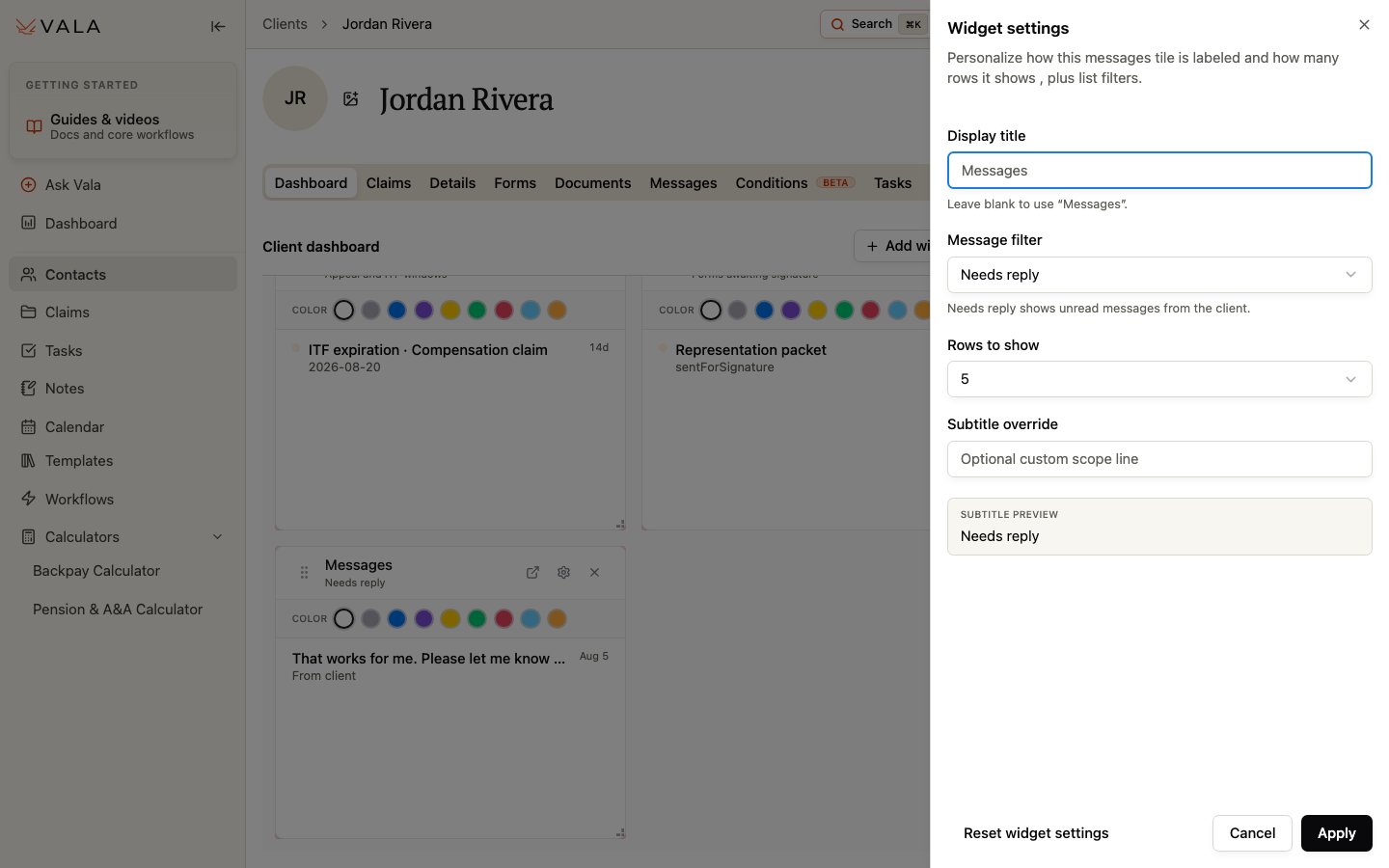
Use Add widget, remove widgets you do not need, or open a widget’s settings to adjust available options such as list scope or row count.
5
Save or reset your view
Select Save when the layout is ready. Reset clears your personal Dashboard layout override. The Dashboard then uses your organization’s default layout when one exists, or Vala’s Balanced system default when it does not.
Your saved layout is personal to you. Owners and administrators can also use Set org default to provide a starting layout for their organization. Each user can still customize their own view.
Workflow widgets
Workflow widgets highlight work that may need review:- Package readiness shows the current checklist: Open claim on file, C-File uploaded, Decision / rating packet, No blocking signatures, and Portal invited or active.
- Claim blockers surfaces open claims needing attention.
- Deadlines shows relevant appeal and Intent to File windows.
- Waiting on signature and Forms pipeline help you follow signing progress.
- Evidence gaps and Decision / rating intake help you identify records that may need review.
- Reminders & automations shows relevant active reminders.
- Financials to review is available only to people with the necessary permission.
Informational widgets
You can also add Client details, Messages, Documents, Attachments, Tasks, Claims, Activity, and Signatures. These widgets give focused access to the corresponding client-specific information. For example, the Balanced layout can show tasks assigned to you and unread client messages that need a reply.Best practices
- Start with a role-appropriate layout, then make only the changes that help you act faster.
- Use Package readiness and blockers to prioritize review, then confirm the underlying Claim, Document, Form, or Client information.
- Keep sensitive or permission-controlled work in the correct Client record.
Related workflows
Client record overview
Choose the right Client tab for the work at hand.
Claims
Review the Client’s claims and related Claim records.