

Overview
The Conditions tab provides a focused Client-level view of condition information and supporting context. Conditions is Beta and appears only when AI is enabled for the organization.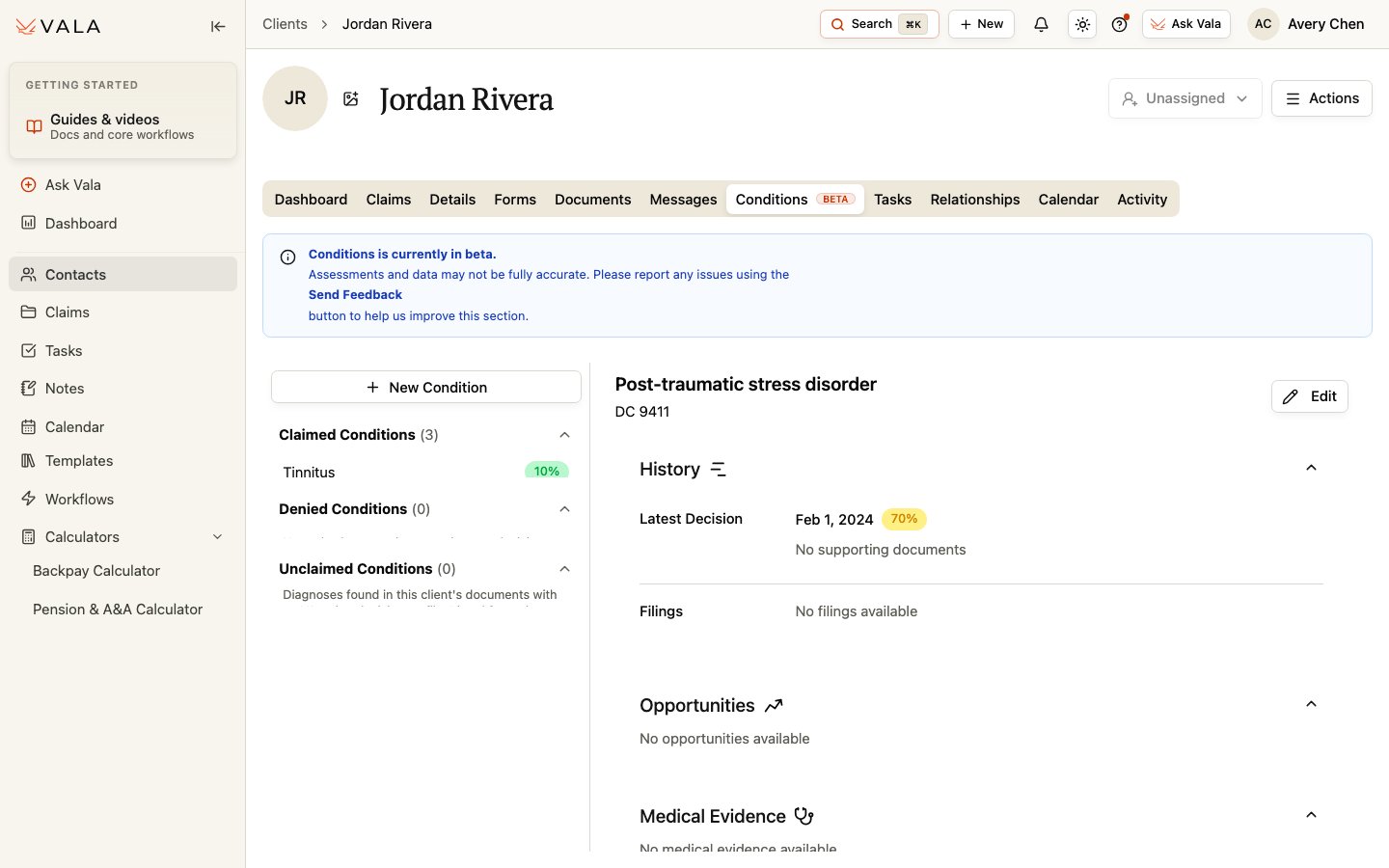
Work with conditions
1
Open Conditions
Open the correct Client record and select Conditions.
2
Select a condition
Use the condition navigation to find the condition you need to review.
3
Review detail and context
Review the available condition detail, rating or history context, and supporting source context.
4
Manage the list
Use New Condition, edit, or delete options when they are available to your role.
5
Verify before use
Confirm relevant information against the Client’s source records and your organization’s review process.
Best practices
- Keep conditions scoped to the correct Client record.
- Use the available history and supporting context to guide source review.
- Correct or remove duplicate or inaccurate entries when your role allows it.
Related pages
Documents
Review the source records behind condition work.
Claims
Continue claim-specific work when relevant.