

Overview
Use Claims to review and organize claim work across your organization. The workspace lists the same Claim records that appear in a Client record’s Claims tab. Use the global workspace to work across Clients, and the Client record when you need the surrounding client context.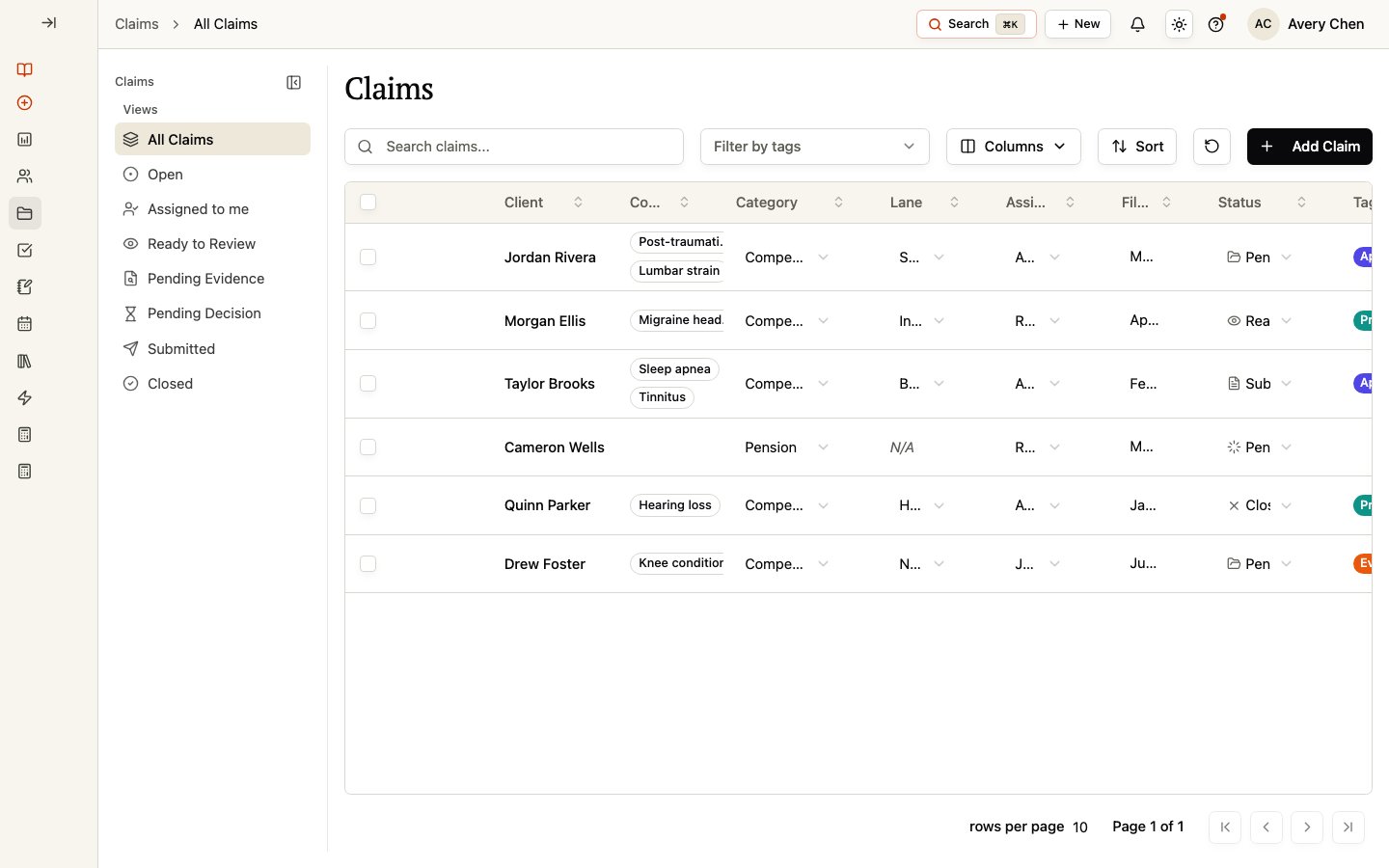
Use views to focus your work
The left-side views are All Claims, Open, Assigned to me, Ready to Review, Pending Evidence, Pending Decision, Submitted, and Closed. Select a view to focus the table on that stage of work. Search by claim or Client information, filter by tags, and use Sort to change the order. Select Columns to show or hide standard and configured custom-field columns, then reset the table layout when you want to return to its saved starting arrangement. The table can include Client, Conditions, Category, Claim Number, Docket Number, Lane, Days Open, Current Lane Age, Assigned to, Filing Date, Decision Date, Appeal Deadline, Status, Tags, Comments, Tasks, and configured Claim custom fields. Your organization can expose a different set of columns. Some table fields can be edited directly when you have access, including Category, Claim Number, Docket Number, Lane, Assigned to, dates, and Status. Open the Claim record for the full workspace. When you select one Claim, you can use Quick view, Open record, or Edit. Selecting one or more Claims also makes Delete available. Confirm that the selected records are the intended ones before using a selection action.Understand Status and Review lane
Status describes the current work state for a Claim. Current values include Ready to Review, Pending Evidence, Pending Decision, Submitted, and Closed. Review lane is a separate classification used for Compensation claims. The available lanes are New, Supplemental, Increase, Higher Level Review, CUE (Clear & Unmistakable Error), CAVC, TDIU, SMC (Special Monthly Compensation), and Board Appeal. A Review lane does not replace Status. For non-Compensation categories, the same Compensation lane choices do not apply in the same way.Create a Claim
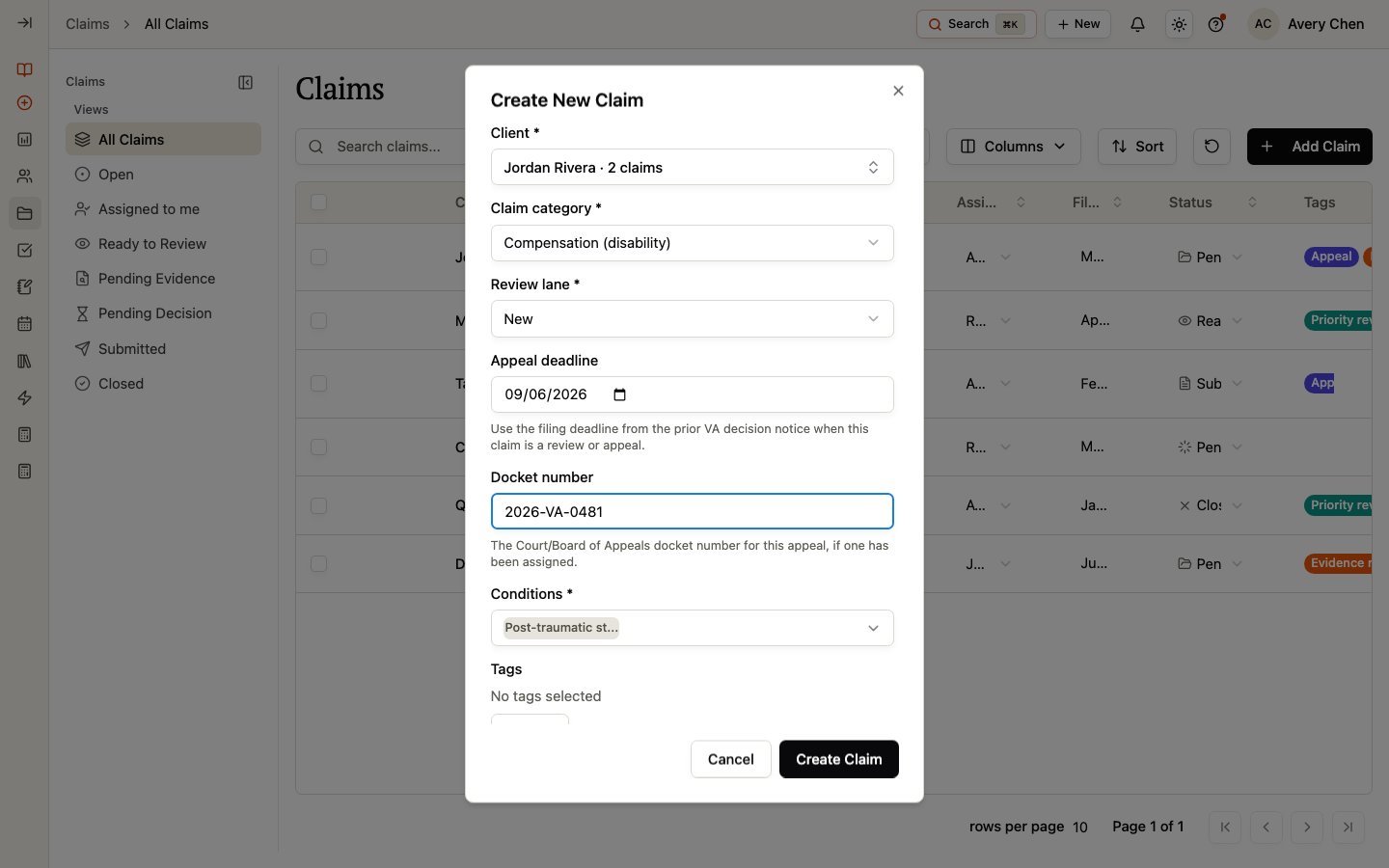
Select Add Claim from the global workspace, or open a Client record and use its Claims tab to start with that Client already selected.1
Choose the Client
A Client is required. Select an existing Client, or start Add Client when it is available and you need to create the Client first.
2
Choose the Claim category
A Claim category is required. Current categories are Compensation (disability), Pension, Dependency & survivor benefits, Education benefits, Housing / loan benefits, Healthcare, Burial / memorial, Insurance, and Administrative / other.
3
Complete category-specific fields
For Compensation, choose a Review lane and link at least one Condition. For a Board Appeal, select the applicable subtype.
4
Add optional context
Add an appeal deadline, docket number, tags, or workspace custom fields when they apply, then select Create Claim.
Quick view or open the full record
Select a Claim to open Quick view for a compact summary of its details, status, assignment, and dates. Choose Open full claim record when you need to prepare or review the work in depth.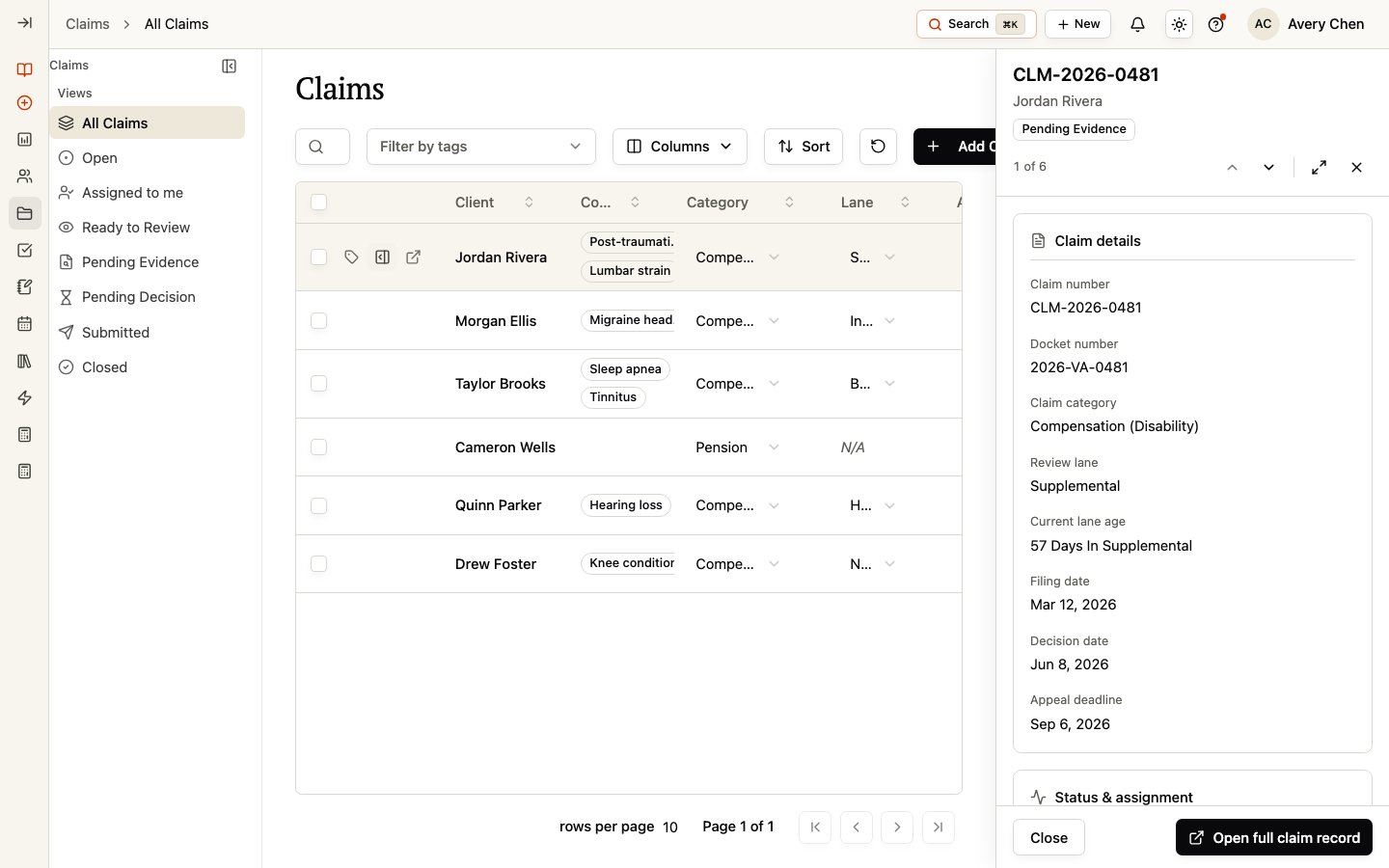
Work from a Client record
The Claims tab in a Client record only shows that Client’s claims. It does not create a second copy of the Claim. Changes you make there are reflected in the global Claims workspace and vice versa.Claim record guidance
Claim Details
Prepare a Claim with Conditions, evidence, forms, tasks, comments, and review guidance.
Claim Dates
Maintain filing, decision, appeal, ITF, and docket information.
Claim History
Review changes to a Claim and filter the history by field group.
Claim Financials
Review permission-controlled financial records and document findings.
Related pages
Conditions
Manage the Client Conditions that can be linked to a Claim.
Documents
Manage Client documents before linking supporting evidence to a Claim.
Forms & vSign
Prepare and send forms using your organization’s signing workflow.
Tasks
Manage Client work that can be linked to a Claim.