

Overview
Use Documents in a Client record to keep approved records and supporting material organized for review. The workspace helps you open documents, find them with search and filters, organize folders, and continue related work.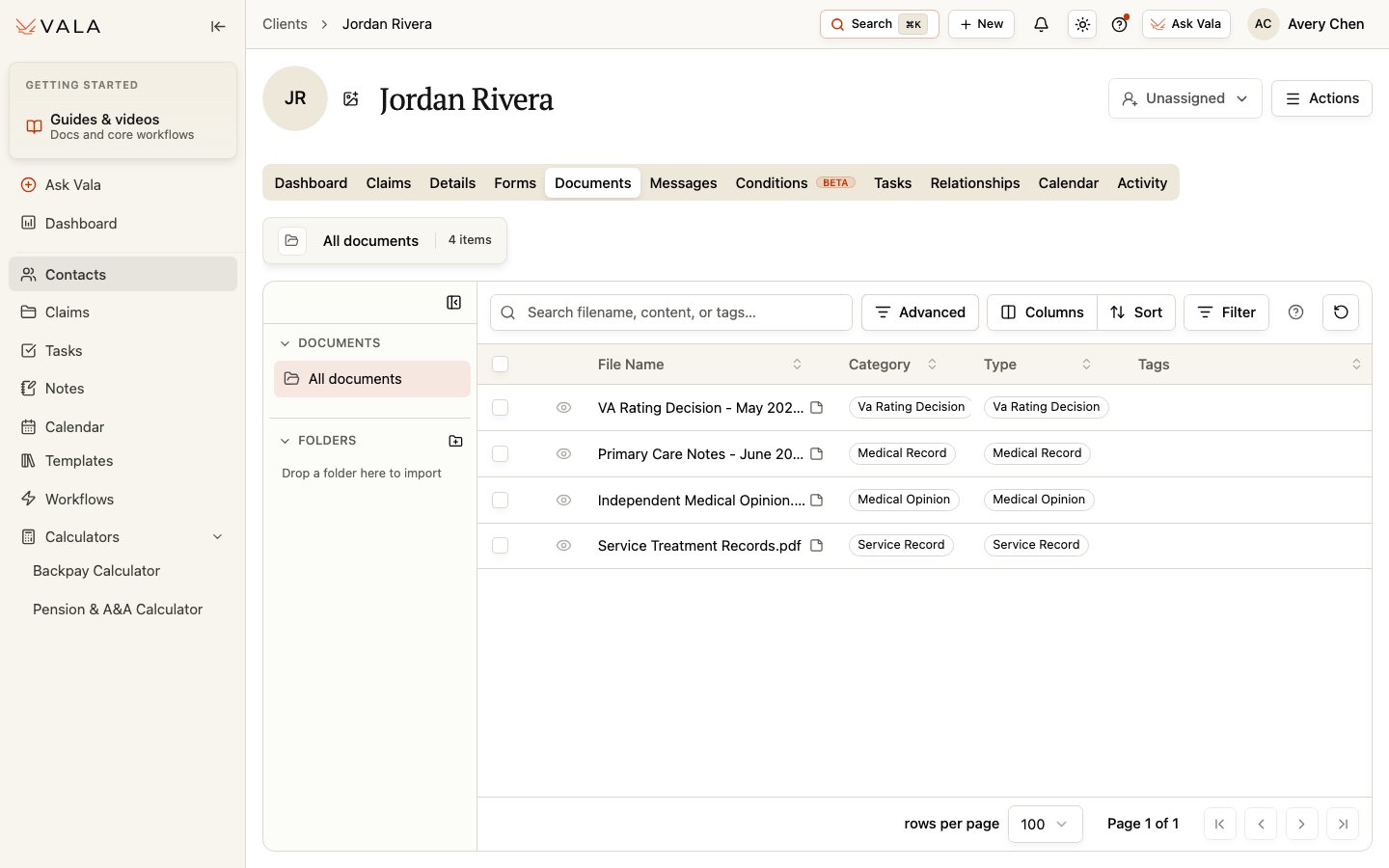
Work with documents
1
Confirm the Client
Make sure you are in the correct Client record before uploading or changing a document.
2
Upload approved records
Add the records your organization is authorized to process.
3
Wait for processing
Review the visible processing status before relying on any AI-assisted outputs or document-derived information.
4
Find and review
Use search, filters, sorting, and available columns to locate a document, then open it and review the source.
5
Organize and continue work
Use folders and document notes where available. You can also create a Task linked to selected document or documents, or bulk download selected material.
Best practices
- Use clear organization conventions for folders, notes, and tags.
- Review the original document before relying on summaries, suggestions, or extracted information.
- Keep Client visibility and document selection intentional when sharing or downloading records.
Related pages
Conditions
Review condition context from Client records.
Tasks
Track a document-related follow-up task.