> ## Documentation Index
> Fetch the complete documentation index at: https://docs.valaclaims.com/llms.txt
> Use this file to discover all available pages before exploring further.
# Relationships
> Link reusable Contacts to a Client and manage the Client's primary point of contact.
## Overview
**Relationships** links reusable Contacts to a Client. Use it to keep the people and organizations involved in a Client's work connected without creating duplicate contact records.
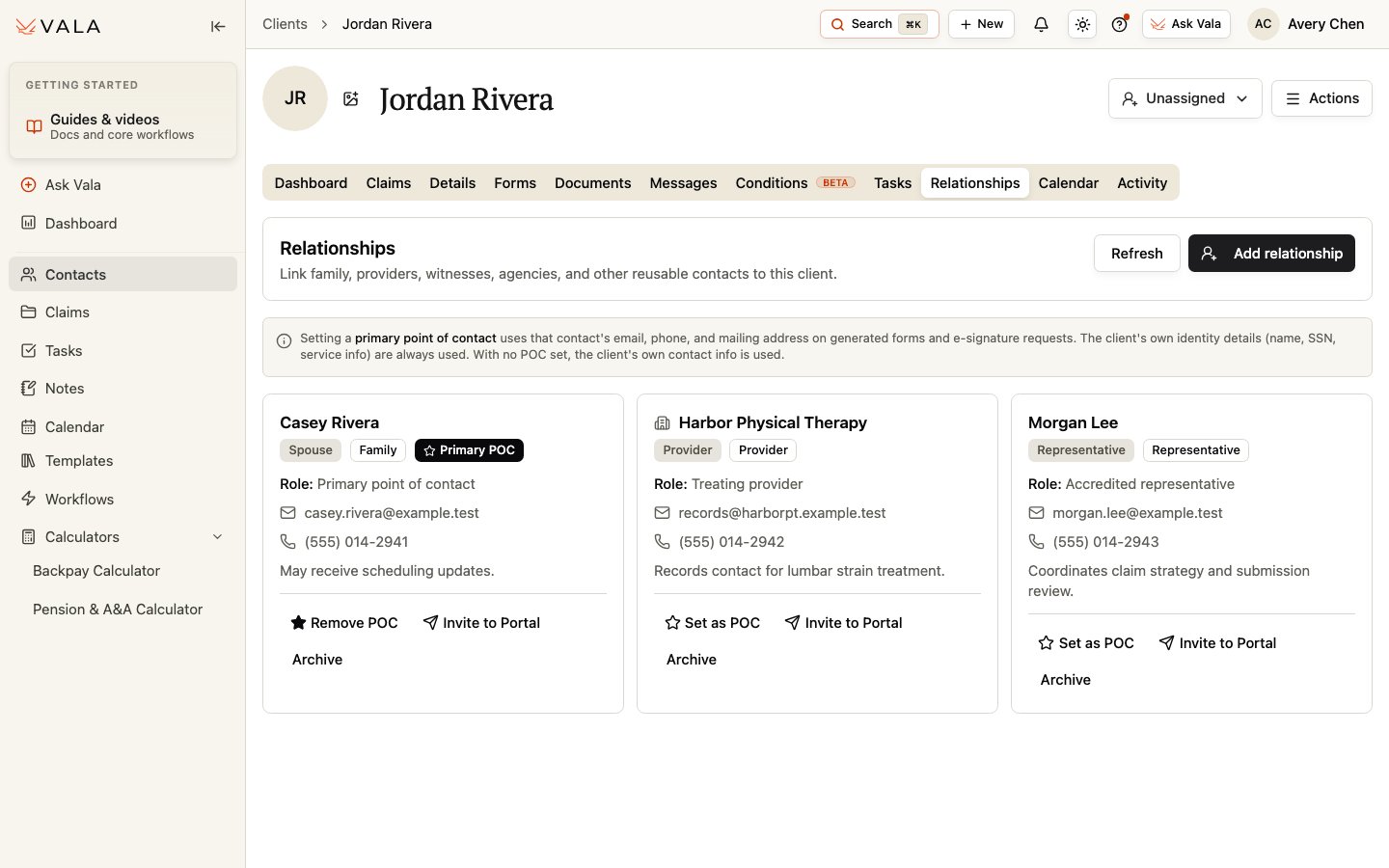 *Each relationship shows the linked Contact, relationship type, role, and available actions.*
## Add a relationship
Open the Client record and select Relationships.
Search for the person or organization before creating another Contact.
If no reusable Contact exists, create an individual or organization from the relationship workflow.
Select a relationship type, add the role and notes that help your team understand the connection, then save.
Useful relationship types include family members such as a spouse or caregiver, a provider, employer, representative, VSO, claims agent, witness, agency, or VA facility.
Use **Archive** when a relationship should no longer be active on the Client record. Archiving a relationship helps preserve the Client's history while keeping current work clear.
## Primary point of contact
One related Contact can be saved as the **Primary POC**. Use **Set as POC** to select it, or **Remove POC** to return to the Client's own contact information.
Where supported, a saved Primary POC can supply contact-mapped form fields and the Client-side e-sign recipient. The Client's identity information remains the Client's. When you send a form for signature, you can choose or override the POC for that send without changing the saved Primary POC. With no saved Primary POC, the Client's own contact information is used. Selecting Client (self) uses the Client's own information for that Client-side contact and signing role.
## Portal access
Eligible related Contacts can be invited to scoped Client portal access. An email address is required. When available, choose only the access areas the Contact needs: **Messages**, **Documents**, and **Signatures**. Staff can revoke access or send a new invitation when needed.
## Family information
Saving supported spouse or child information in **Details** can create or update the corresponding Relationship. Changes made directly in Relationships do not automatically rewrite the original family fields in Details. Review both places when updating family information.
## Best practices
* Search before creating a Contact to reduce duplicates.
* Keep relationship types, roles, and notes factual and useful to the team.
* Confirm the Primary POC and portal access scope before sending a form, signature request, or invitation.
## Related workflows
Maintain Client information and family details.
Choose and verify signers for form workflows.
*Each relationship shows the linked Contact, relationship type, role, and available actions.*
## Add a relationship
Open the Client record and select Relationships.
Search for the person or organization before creating another Contact.
If no reusable Contact exists, create an individual or organization from the relationship workflow.
Select a relationship type, add the role and notes that help your team understand the connection, then save.
Useful relationship types include family members such as a spouse or caregiver, a provider, employer, representative, VSO, claims agent, witness, agency, or VA facility.
Use **Archive** when a relationship should no longer be active on the Client record. Archiving a relationship helps preserve the Client's history while keeping current work clear.
## Primary point of contact
One related Contact can be saved as the **Primary POC**. Use **Set as POC** to select it, or **Remove POC** to return to the Client's own contact information.
Where supported, a saved Primary POC can supply contact-mapped form fields and the Client-side e-sign recipient. The Client's identity information remains the Client's. When you send a form for signature, you can choose or override the POC for that send without changing the saved Primary POC. With no saved Primary POC, the Client's own contact information is used. Selecting Client (self) uses the Client's own information for that Client-side contact and signing role.
## Portal access
Eligible related Contacts can be invited to scoped Client portal access. An email address is required. When available, choose only the access areas the Contact needs: **Messages**, **Documents**, and **Signatures**. Staff can revoke access or send a new invitation when needed.
## Family information
Saving supported spouse or child information in **Details** can create or update the corresponding Relationship. Changes made directly in Relationships do not automatically rewrite the original family fields in Details. Review both places when updating family information.
## Best practices
* Search before creating a Contact to reduce duplicates.
* Keep relationship types, roles, and notes factual and useful to the team.
* Confirm the Primary POC and portal access scope before sending a form, signature request, or invitation.
## Related workflows
Maintain Client information and family details.
Choose and verify signers for form workflows.