> ## Documentation Index
> Fetch the complete documentation index at: https://docs.valaclaims.com/llms.txt
> Use this file to discover all available pages before exploring further.
# Details
> Review and maintain the Client information used across the Client record.
## Overview
Use the **Details** tab to review and update the Client information your team uses across client work. The available sections can include **Basic Information**, **Service Information**, **Mailing address**, **Tags**, **Workspace fields** when configured, **Custom data** when applicable, **Additional Fields**, **Notes**, and **Call transcripts**.
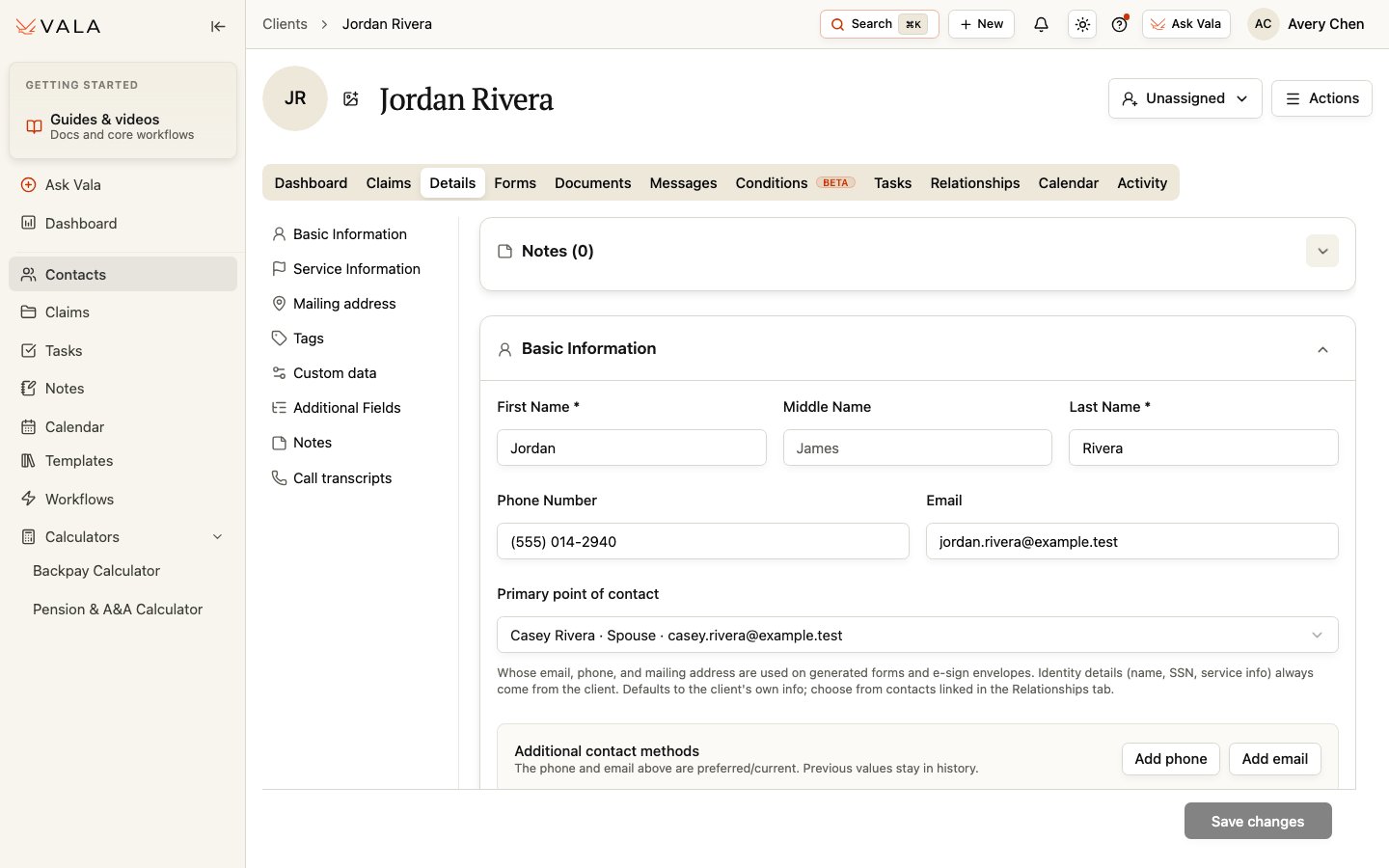 *The Details tab keeps identity, contact, service, and organization-defined information in one place.*
## Before you begin
Confirm that you have opened the correct Client record and have an approved source for any information you plan to change.
## Update Client information
Open the Client record and select Details.
Use the section navigation to find the information you need. Complete only the fields shown for your organization and role.
Make the needed change and select Save changes.
Confirm the saved information against your approved source before using it in a document, form, or client communication.
First and last name are marked as required when you add or edit a Client. Other available fields vary with the Client and your organization's configuration.
## Review suggested information carefully
Details can show Client field suggestions from available records. Review each suggestion against the source material before accepting it or relying on it. A suggestion is not a replacement for your team's verification process.
## Primary point of contact
You can select a saved related Contact as the **Primary point of contact**. This helps make the related contact's contact information available where supported, while the Client's identity information remains the Client's. Manage related contacts and the saved Primary POC in **Relationships**.
## Best practices
* Keep identity and service information consistent with approved records.
* Use Tags and organization-defined fields consistently so your team can find and organize work.
* Keep Notes focused on useful client context and follow your organization's recordkeeping practices.
## Related workflows
Manage related Contacts and the Primary POC.
Review Client information before preparing or sending forms.
*The Details tab keeps identity, contact, service, and organization-defined information in one place.*
## Before you begin
Confirm that you have opened the correct Client record and have an approved source for any information you plan to change.
## Update Client information
Open the Client record and select Details.
Use the section navigation to find the information you need. Complete only the fields shown for your organization and role.
Make the needed change and select Save changes.
Confirm the saved information against your approved source before using it in a document, form, or client communication.
First and last name are marked as required when you add or edit a Client. Other available fields vary with the Client and your organization's configuration.
## Review suggested information carefully
Details can show Client field suggestions from available records. Review each suggestion against the source material before accepting it or relying on it. A suggestion is not a replacement for your team's verification process.
## Primary point of contact
You can select a saved related Contact as the **Primary point of contact**. This helps make the related contact's contact information available where supported, while the Client's identity information remains the Client's. Manage related contacts and the saved Primary POC in **Relationships**.
## Best practices
* Keep identity and service information consistent with approved records.
* Use Tags and organization-defined fields consistently so your team can find and organize work.
* Keep Notes focused on useful client context and follow your organization's recordkeeping practices.
## Related workflows
Manage related Contacts and the Primary POC.
Review Client information before preparing or sending forms.