> ## Documentation Index
> Fetch the complete documentation index at: https://docs.valaclaims.com/llms.txt
> Use this file to discover all available pages before exploring further.
# Messages
> Review and send secure messages in a Client record.
## Overview
Use **Messages** in a Client record to review the secure conversation with the Client, reply, and share relevant attachments. Unread Client messages are highlighted elsewhere in Vala to help surface messages that need attention. Opening the Client's Messages conversation marks those unread Client messages as read.
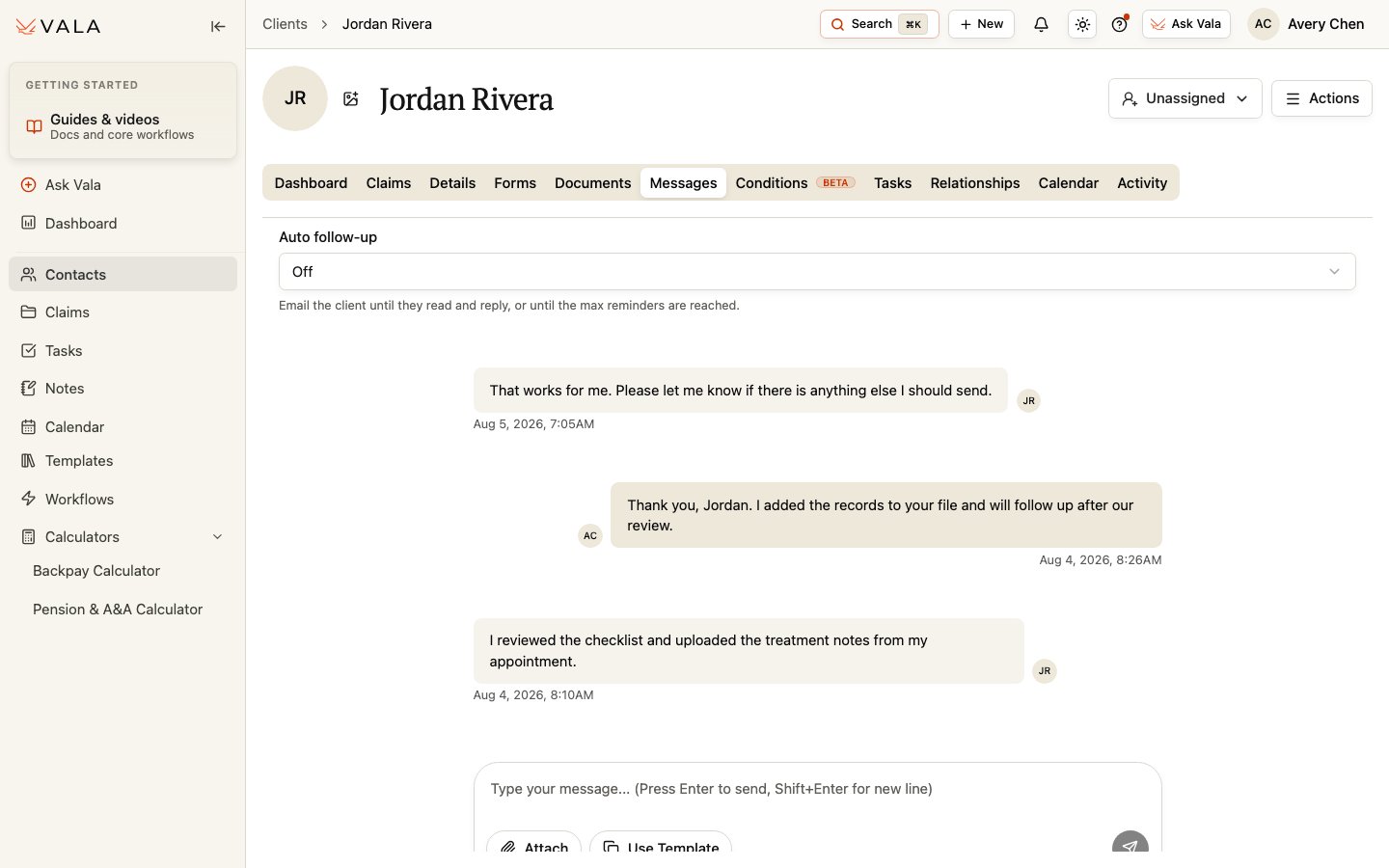 *The conversation view keeps Client messages and their context together.*
## Send a message
Open the Client record and select Messages.
Read the conversation and confirm the Client context before replying.
Write a clear message for the Client.
Attach existing Client Documents, upload a new attachment, or attach eligible reusable organization Documents.
Select a message template from Templates > Messages. Customer-visible template variables are filled from the available Client and sender information.
Review the message and attachments, then send. Choose an optional follow-up cadence when that control is available.
When Messages surfaces portal invitation context, staff can send or resend an invitation where their role allows it. Confirm the Client's email and the intended recipient before sending.
## Best practices
* Keep messages specific to the Client and the next action.
* Review selected documents and reusable attachments before sending.
* Use templates as a starting point, then verify the resulting message and variables.
## Related pages
Create and maintain reusable message templates.
Review Client documents before attaching them.
*The conversation view keeps Client messages and their context together.*
## Send a message
Open the Client record and select Messages.
Read the conversation and confirm the Client context before replying.
Write a clear message for the Client.
Attach existing Client Documents, upload a new attachment, or attach eligible reusable organization Documents.
Select a message template from Templates > Messages. Customer-visible template variables are filled from the available Client and sender information.
Review the message and attachments, then send. Choose an optional follow-up cadence when that control is available.
When Messages surfaces portal invitation context, staff can send or resend an invitation where their role allows it. Confirm the Client's email and the intended recipient before sending.
## Best practices
* Keep messages specific to the Client and the next action.
* Review selected documents and reusable attachments before sending.
* Use templates as a starting point, then verify the resulting message and variables.
## Related pages
Create and maintain reusable message templates.
Review Client documents before attaching them.