> ## Documentation Index
> Fetch the complete documentation index at: https://docs.valaclaims.com/llms.txt
> Use this file to discover all available pages before exploring further.
# Forms & vSign
> Prepare supported forms, review values, and collect electronic signatures.
## Overview
Use **Forms** in a Client record to prepare supported VA forms and eligible reusable organization documents, review the information shown, and collect electronic signatures through vSign. Available forms and sending options can vary by organization configuration.
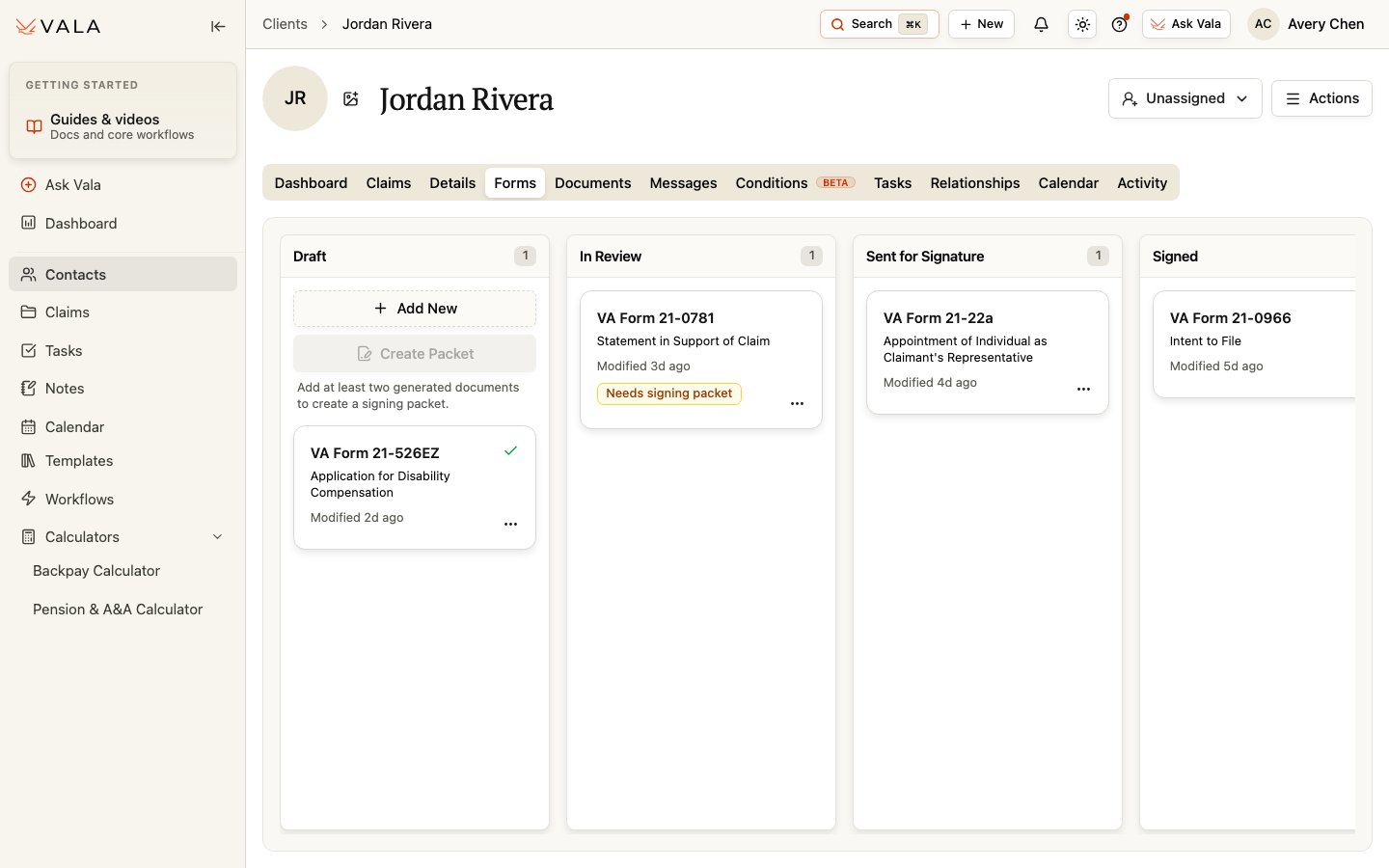 *The Forms board tracks a document from preparation through signing.*
## Before you begin
* Open the correct Client record.
* Verify the Client information, form fields, and intended recipients.
* Confirm that the form or reusable document is available to your organization.
## Prepare and send a form
Use the available form or eligible reusable organization document option.
Open the document, review the populated values, and edit where the form supports editing.
Use the current board columns: Draft, In Review, Sent for Signature, and Signed.
Before sending, verify every form field and recipient. Review any visible warning about unpopulated form fields.
Send for signature, follow the signing status, and review the signed result before relying on it.
## Signing choices
You can send a single document for signature or create a multi-document signing packet when at least two eligible documents are available. Where supported, a saved **Primary POC** can supply contact-mapped fields and the Client-side e-sign recipient while Client identity fields remain the Client's. For each send, you can choose or override the POC without changing the saved Primary POC. With no saved Primary POC, the Client's own contact information is used. Choose **Client (self)** to use the Client's own information for the Client-side contact and signing role.
## Best practices
* Verify every form value and recipient against approved information before sending.
* Use the Primary POC only when it is the appropriate contact for that send.
* Review the signed result and preserve it according to your organization's process.
## Related pages
Verify Client information before preparing forms.
Set or review a Primary POC.
*The Forms board tracks a document from preparation through signing.*
## Before you begin
* Open the correct Client record.
* Verify the Client information, form fields, and intended recipients.
* Confirm that the form or reusable document is available to your organization.
## Prepare and send a form
Use the available form or eligible reusable organization document option.
Open the document, review the populated values, and edit where the form supports editing.
Use the current board columns: Draft, In Review, Sent for Signature, and Signed.
Before sending, verify every form field and recipient. Review any visible warning about unpopulated form fields.
Send for signature, follow the signing status, and review the signed result before relying on it.
## Signing choices
You can send a single document for signature or create a multi-document signing packet when at least two eligible documents are available. Where supported, a saved **Primary POC** can supply contact-mapped fields and the Client-side e-sign recipient while Client identity fields remain the Client's. For each send, you can choose or override the POC without changing the saved Primary POC. With no saved Primary POC, the Client's own contact information is used. Choose **Client (self)** to use the Client's own information for the Client-side contact and signing role.
## Best practices
* Verify every form value and recipient against approved information before sending.
* Use the Primary POC only when it is the appropriate contact for that send.
* Review the signed result and preserve it according to your organization's process.
## Related pages
Verify Client information before preparing forms.
Set or review a Primary POC.