> ## Documentation Index
> Fetch the complete documentation index at: https://docs.valaclaims.com/llms.txt
> Use this file to discover all available pages before exploring further.
# Documents
> Upload, review, organize, and use records in a Client record.
## Overview
Use **Documents** in a Client record to keep approved records and supporting material organized for review. The workspace helps you open documents, find them with search and filters, organize folders, and continue related work.
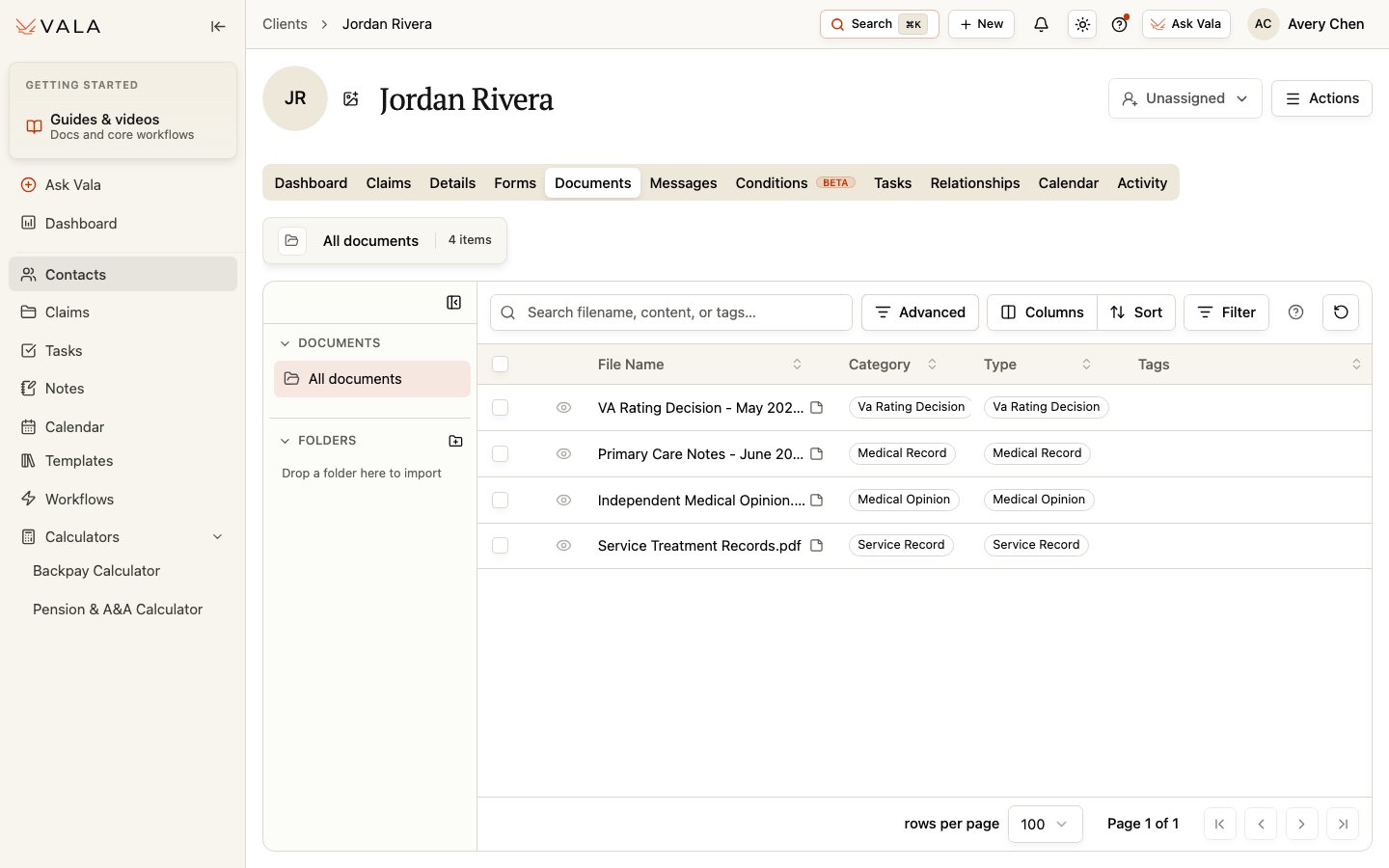 *Search and table controls help you locate Client documents quickly.*
## Work with documents
Make sure you are in the correct Client record before uploading or changing a document.
Add the records your organization is authorized to process.
Review the visible processing status before relying on any AI-assisted outputs or document-derived information.
Use search, filters, sorting, and available columns to locate a document, then open it and review the source.
Use folders and document notes where available. You can also create a Task linked to selected document or documents, or bulk download selected material.
Where available, review Client visibility before sharing a document through the Client experience. Use current C-File controls only when they are relevant to the Client's workflow.
## Best practices
* Use clear organization conventions for folders, notes, and tags.
* Review the original document before relying on summaries, suggestions, or extracted information.
* Keep Client visibility and document selection intentional when sharing or downloading records.
## Related pages
Review condition context from Client records.
Track a document-related follow-up task.
*Search and table controls help you locate Client documents quickly.*
## Work with documents
Make sure you are in the correct Client record before uploading or changing a document.
Add the records your organization is authorized to process.
Review the visible processing status before relying on any AI-assisted outputs or document-derived information.
Use search, filters, sorting, and available columns to locate a document, then open it and review the source.
Use folders and document notes where available. You can also create a Task linked to selected document or documents, or bulk download selected material.
Where available, review Client visibility before sharing a document through the Client experience. Use current C-File controls only when they are relevant to the Client's workflow.
## Best practices
* Use clear organization conventions for folders, notes, and tags.
* Review the original document before relying on summaries, suggestions, or extracted information.
* Keep Client visibility and document selection intentional when sharing or downloading records.
## Related pages
Review condition context from Client records.
Track a document-related follow-up task.