> ## Documentation Index
> Fetch the complete documentation index at: https://docs.valaclaims.com/llms.txt
> Use this file to discover all available pages before exploring further.
# Conditions
> Review and organize condition-level information in a Client record.
## Overview
The **Conditions** tab provides a focused Client-level view of condition information and supporting context. Conditions is Beta and appears only when AI is enabled for the organization.
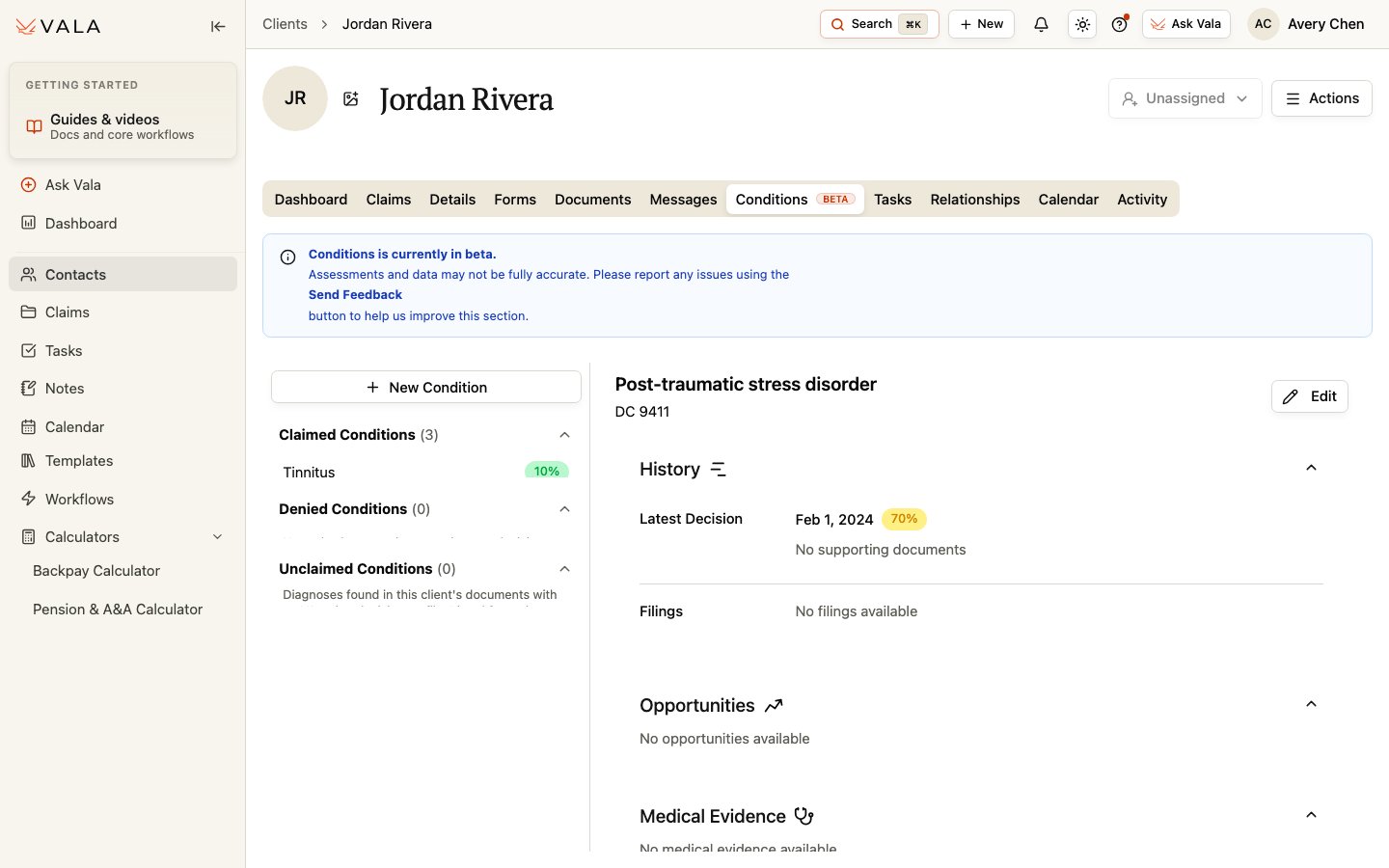 *Use the condition list to select a condition, then review the available detail and history.*
## Work with conditions
Open the correct Client record and select Conditions.
Use the condition navigation to find the condition you need to review.
Review the available condition detail, rating or history context, and supporting source context.
Use New Condition, edit, or delete options when they are available to your role.
Confirm relevant information against the Client's source records and your organization's review process.
Conditions can appear from processed rating-decision and medical records, and staff can also add or update condition information. Always review the source material and do not treat a suggested condition or rating context as a final conclusion.
## Best practices
* Keep conditions scoped to the correct Client record.
* Use the available history and supporting context to guide source review.
* Correct or remove duplicate or inaccurate entries when your role allows it.
## Related pages
Review the source records behind condition work.
Continue claim-specific work when relevant.
*Use the condition list to select a condition, then review the available detail and history.*
## Work with conditions
Open the correct Client record and select Conditions.
Use the condition navigation to find the condition you need to review.
Review the available condition detail, rating or history context, and supporting source context.
Use New Condition, edit, or delete options when they are available to your role.
Confirm relevant information against the Client's source records and your organization's review process.
Conditions can appear from processed rating-decision and medical records, and staff can also add or update condition information. Always review the source material and do not treat a suggested condition or rating context as a final conclusion.
## Best practices
* Keep conditions scoped to the correct Client record.
* Use the available history and supporting context to guide source review.
* Correct or remove duplicate or inaccurate entries when your role allows it.
## Related pages
Review the source records behind condition work.
Continue claim-specific work when relevant.