> ## Documentation Index
> Fetch the complete documentation index at: https://docs.valaclaims.com/llms.txt
> Use this file to discover all available pages before exploring further.
# Financials
> Review permission-controlled Claim financial records and findings from documents.
## Overview
The **Financials** tab appears for users whose role has access to Claim financials. Use it to keep Claim financial records organized and to review available findings from uploaded documents. It is a workflow record, not accounting or legal advice.
 ## Maintain financial records
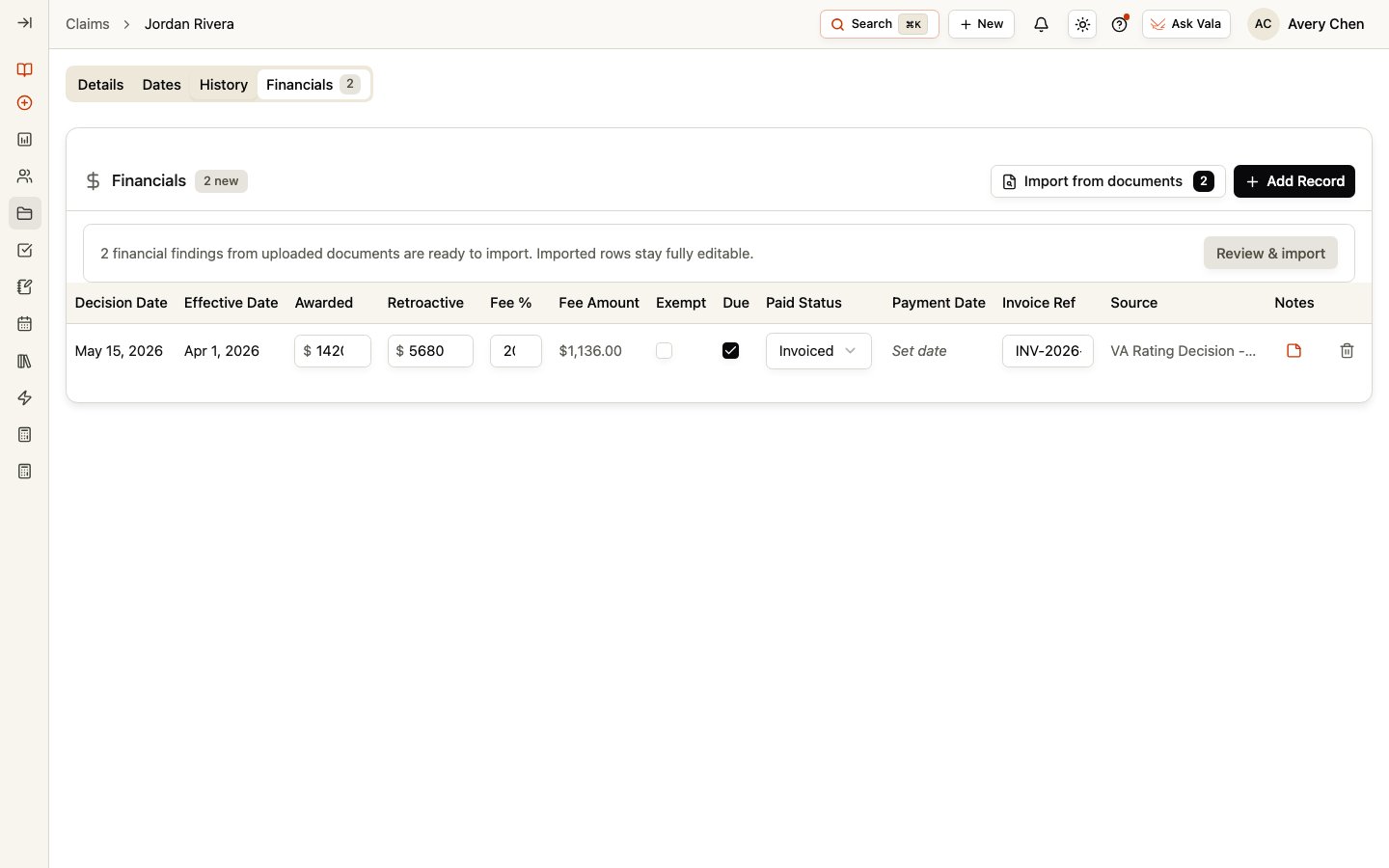
Select **Add Record** to create a financial record. Depending on the record and your access, you can maintain decision date, effective date, awarded amount, retroactive amount, fee percentage, fee amount, fee-exempt status, fees due, paid status, payment date, invoice reference, source, and notes. You can edit or delete records when permitted.
Review the values and source documents using your organization's process before using them for operational decisions.
## Review findings from documents
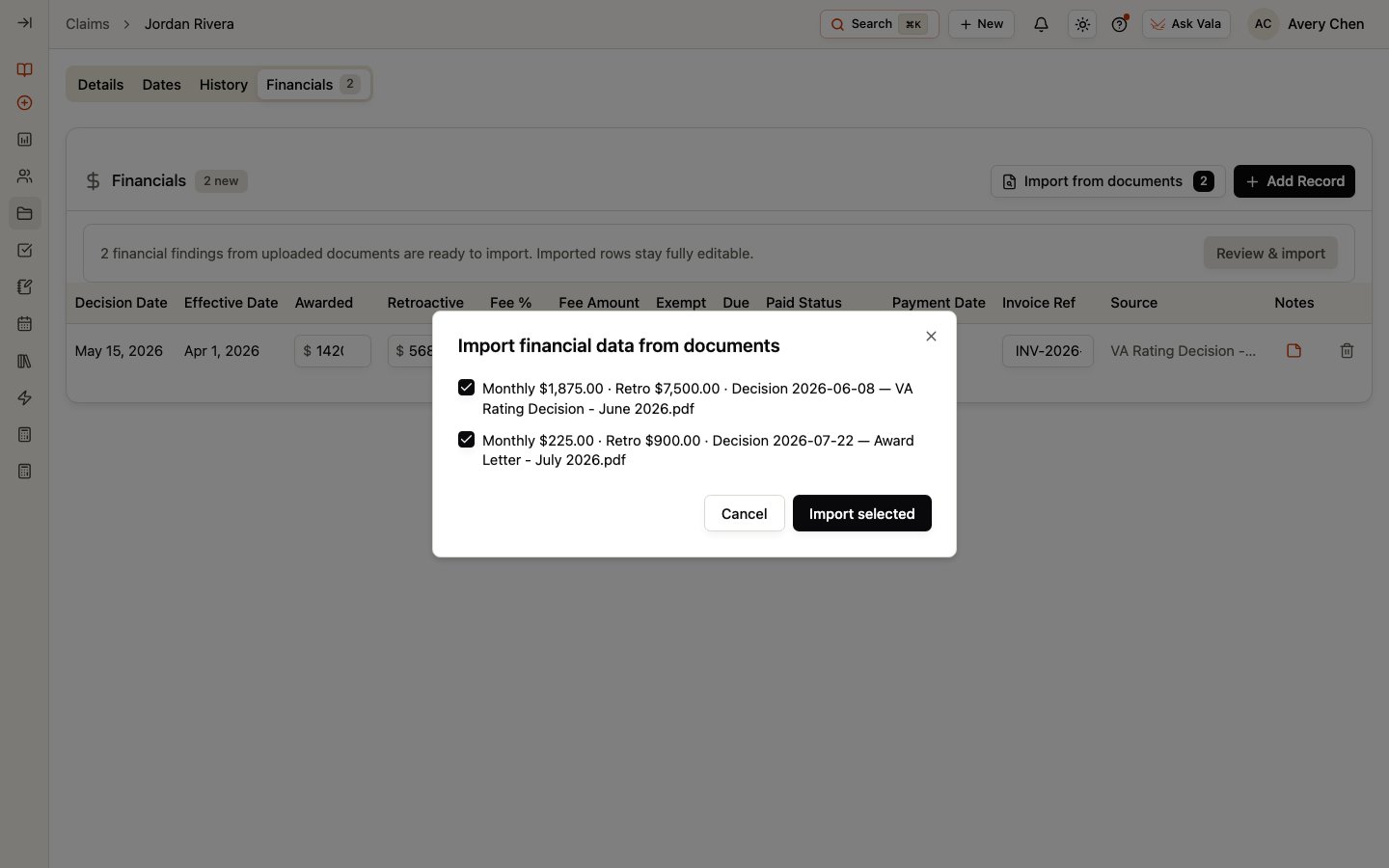
When Vala identifies unapplied financial findings in uploaded documents, the Financials tab can show a count and a **Review & import** or **Import from documents** option. Open it to review the available findings, select the ones you intend to add, and choose **Import selected**. Imported rows remain editable so your team can correct or complete the record after review.
## Maintain financial records
Select **Add Record** to create a financial record. Depending on the record and your access, you can maintain decision date, effective date, awarded amount, retroactive amount, fee percentage, fee amount, fee-exempt status, fees due, paid status, payment date, invoice reference, source, and notes. You can edit or delete records when permitted.
Review the values and source documents using your organization's process before using them for operational decisions.
## Review findings from documents
When Vala identifies unapplied financial findings in uploaded documents, the Financials tab can show a count and a **Review & import** or **Import from documents** option. Open it to review the available findings, select the ones you intend to add, and choose **Import selected**. Imported rows remain editable so your team can correct or complete the record after review.
 If you do not see Financials, ask an organization owner or administrator whether your role includes access to Claim financials.
## Related pages
Return to the Claim preparation workspace.
Review the Claim decision date and its source information.
Manage the Client documents that can supply findings.
If you do not see Financials, ask an organization owner or administrator whether your role includes access to Claim financials.
## Related pages
Return to the Claim preparation workspace.
Review the Claim decision date and its source information.
Manage the Client documents that can supply findings.