> ## Documentation Index
> Fetch the complete documentation index at: https://docs.valaclaims.com/llms.txt
> Use this file to discover all available pages before exploring further.
# Details
> Prepare a Claim with its Conditions, evidence, forms, tasks, comments, and review steps.
## Overview
The **Details** tab is the central preparation workspace for a Claim. It keeps the Claim's readiness steps, fields, Conditions, evidence, forms, tasks, internal comments, and review guidance together. **Conditions**, **Evidence**, **Forms**, **Tasks**, and **Review** are sections within Details, not separate record tabs.
 ## Review the Claim fields
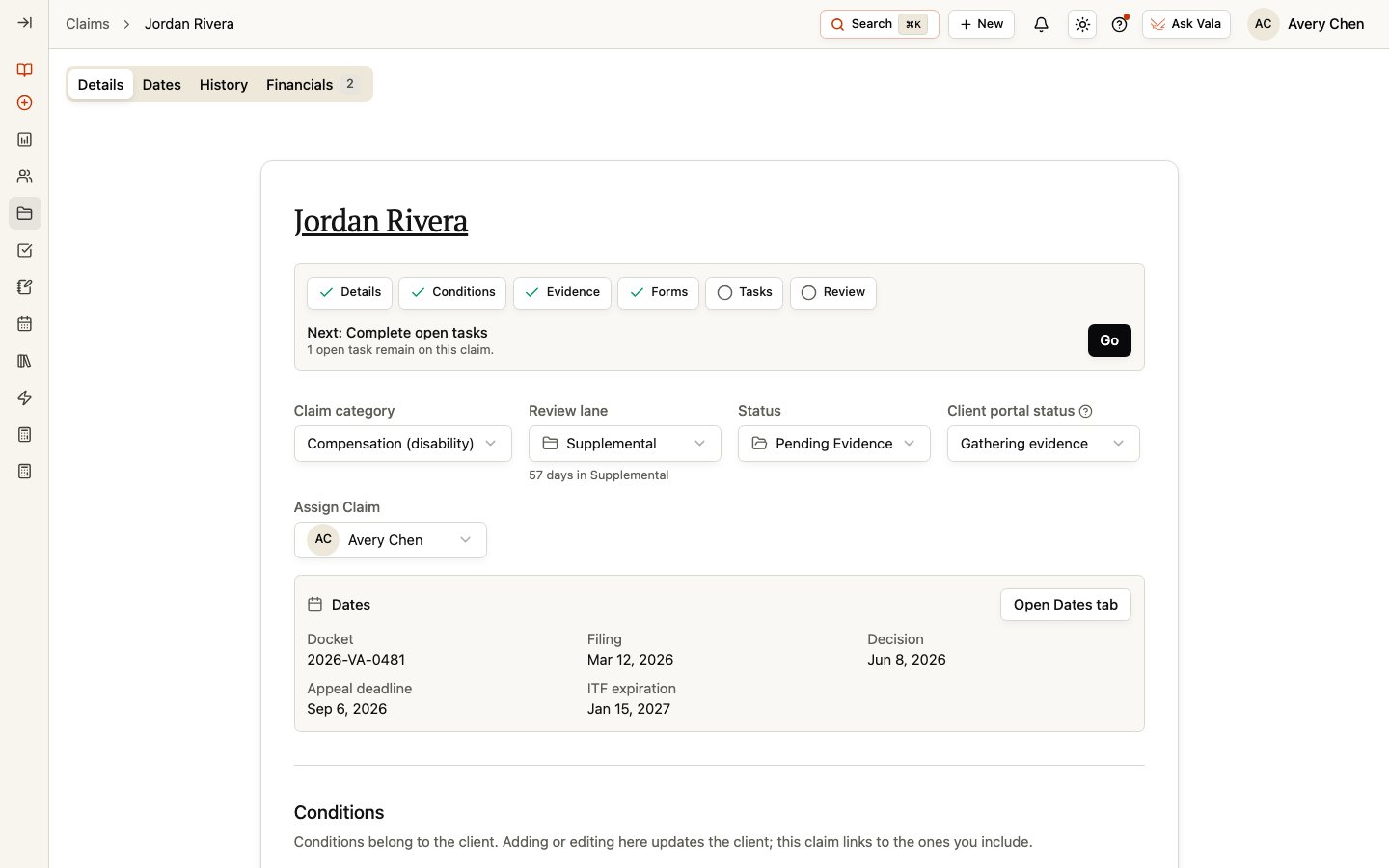
At the top of Details, review the next action and the Claim category, Review lane when applicable, Status, Client portal status, and assignment. The next action is a high-level prompt for the remaining work. Use it to decide what to inspect next, then review the underlying records.
**Status** is your internal Claim work state. **Client portal status** is a separate value used for the Client-facing portal experience. Keep the two values aligned with your organization's process, but do not treat one as a replacement for the other.
The Dates summary gives quick access to the Claim's filing, decision, deadline, and docket information. Select **Open Dates tab** when you need to maintain those fields or review their source information.
## Link Conditions
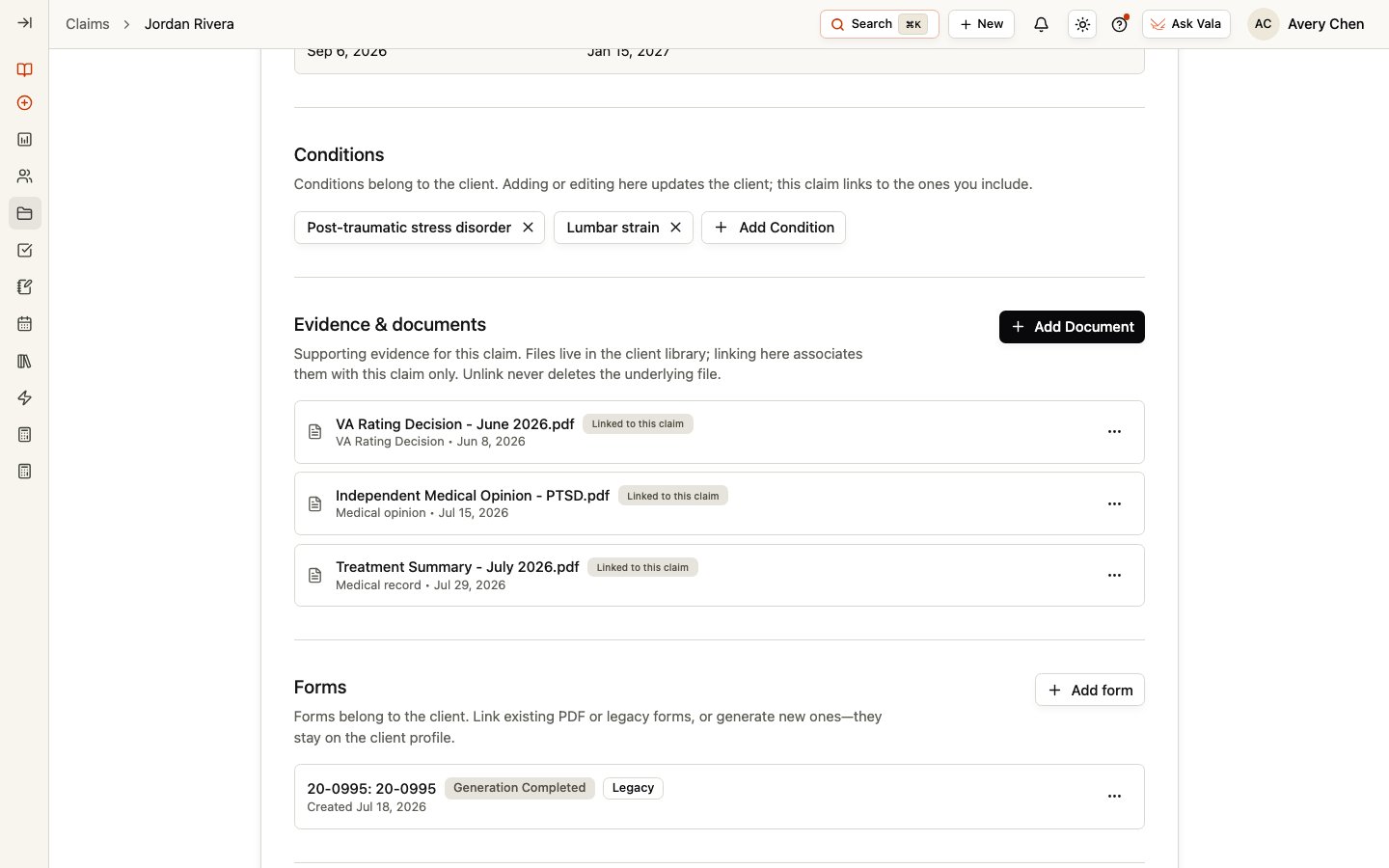
Conditions belong to the Client. Adding or editing a Condition here updates the Client's Condition information; the Claim links to the Conditions you include. Use **Add Condition** to create a Client Condition when needed, or remove a link when a Condition is not part of this Claim.
## Manage evidence and documents
The **Evidence & documents** section associates Client documents with the Claim. Use **Add Document** to link an existing Client document or upload a document when that option is available. You can update permitted document metadata from the Claim workspace.
Unlinking a document removes the Claim association only. It does not delete the underlying document from the Client record.
## Review the Claim fields
At the top of Details, review the next action and the Claim category, Review lane when applicable, Status, Client portal status, and assignment. The next action is a high-level prompt for the remaining work. Use it to decide what to inspect next, then review the underlying records.
**Status** is your internal Claim work state. **Client portal status** is a separate value used for the Client-facing portal experience. Keep the two values aligned with your organization's process, but do not treat one as a replacement for the other.
The Dates summary gives quick access to the Claim's filing, decision, deadline, and docket information. Select **Open Dates tab** when you need to maintain those fields or review their source information.
## Link Conditions
Conditions belong to the Client. Adding or editing a Condition here updates the Client's Condition information; the Claim links to the Conditions you include. Use **Add Condition** to create a Client Condition when needed, or remove a link when a Condition is not part of this Claim.
## Manage evidence and documents
The **Evidence & documents** section associates Client documents with the Claim. Use **Add Document** to link an existing Client document or upload a document when that option is available. You can update permitted document metadata from the Claim workspace.
Unlinking a document removes the Claim association only. It does not delete the underlying document from the Client record.
 ## Add and review forms
Use **Add form** to link eligible existing forms or create available forms for the Client. Review values in the form workspace before continuing with any signing workflow. Forms are Client records that can be associated with the Claim; they remain available from the Client record.
For preparing, sending, and tracking signatures, see [Forms & vSign](/core-workflows/forms-and-vsign).
## Keep Claim work connected with tasks
Tasks are Client-owned work items that can be linked to a Claim. In the **Tasks** section, create a new task for the Claim or use **Link from client** to associate an existing Client task. Claim readiness can surface open linked tasks, so keep task status current.
Task documents are not automatically the same as the documents linked in **Evidence & documents**. Review each association in the correct workspace. For task management guidance, see [Tasks](/core-workflows/tasks).
## Use comments for internal context
Use **Comments** for internal team context about the Claim. Comments are not Client messages. Use the Client's **Messages** workspace when you need to manage client communication.
## Review readiness
The **Review** section helps you organize a final internal review of the Claim's connected work. Confirm the Claim fields, Conditions, evidence, forms, tasks, and dates against your organization's process before moving the Claim forward. This guidance supports your workflow; it is not a legal assessment or a guarantee of an outcome.
## Related pages
Return to the global Claims workspace.
Maintain Claim dates and review document-suggested decision dates.
Manage documents in the Client record.
Manage client work and task ownership.
## Add and review forms
Use **Add form** to link eligible existing forms or create available forms for the Client. Review values in the form workspace before continuing with any signing workflow. Forms are Client records that can be associated with the Claim; they remain available from the Client record.
For preparing, sending, and tracking signatures, see [Forms & vSign](/core-workflows/forms-and-vsign).
## Keep Claim work connected with tasks
Tasks are Client-owned work items that can be linked to a Claim. In the **Tasks** section, create a new task for the Claim or use **Link from client** to associate an existing Client task. Claim readiness can surface open linked tasks, so keep task status current.
Task documents are not automatically the same as the documents linked in **Evidence & documents**. Review each association in the correct workspace. For task management guidance, see [Tasks](/core-workflows/tasks).
## Use comments for internal context
Use **Comments** for internal team context about the Claim. Comments are not Client messages. Use the Client's **Messages** workspace when you need to manage client communication.
## Review readiness
The **Review** section helps you organize a final internal review of the Claim's connected work. Confirm the Claim fields, Conditions, evidence, forms, tasks, and dates against your organization's process before moving the Claim forward. This guidance supports your workflow; it is not a legal assessment or a guarantee of an outcome.
## Related pages
Return to the global Claims workspace.
Maintain Claim dates and review document-suggested decision dates.
Manage documents in the Client record.
Manage client work and task ownership.